
A Goodreads library is a list of shelves, ratings, and books you meant to read. Notion can hold that list. I wanted mine next to my notes, with covers, and I did not want to paste every image by hand.
There are two ways to move it. Both start with the same CSV. If the library is on StoryGraph, that file is a different export, and the path I use is How to move your StoryGraph library to Notion.
The first is free. You export the library and let Notion turn the file into a database. That is the backup I use when I only want the shelves (To Read, Reading, Read) saved somewhere else.
The second is NotionReads, the tracker I built so that same file can land as a shelf with covers. The homepage describes that import as moving the library over and finding missing information that is not up to date in Goodreads.
If you only want the file in Notion, stay with Approach A. If you want the shelf with covers, skip to Approach B or open the Goodreads import.
Approach A: a free CSV import
Export the library from Goodreads
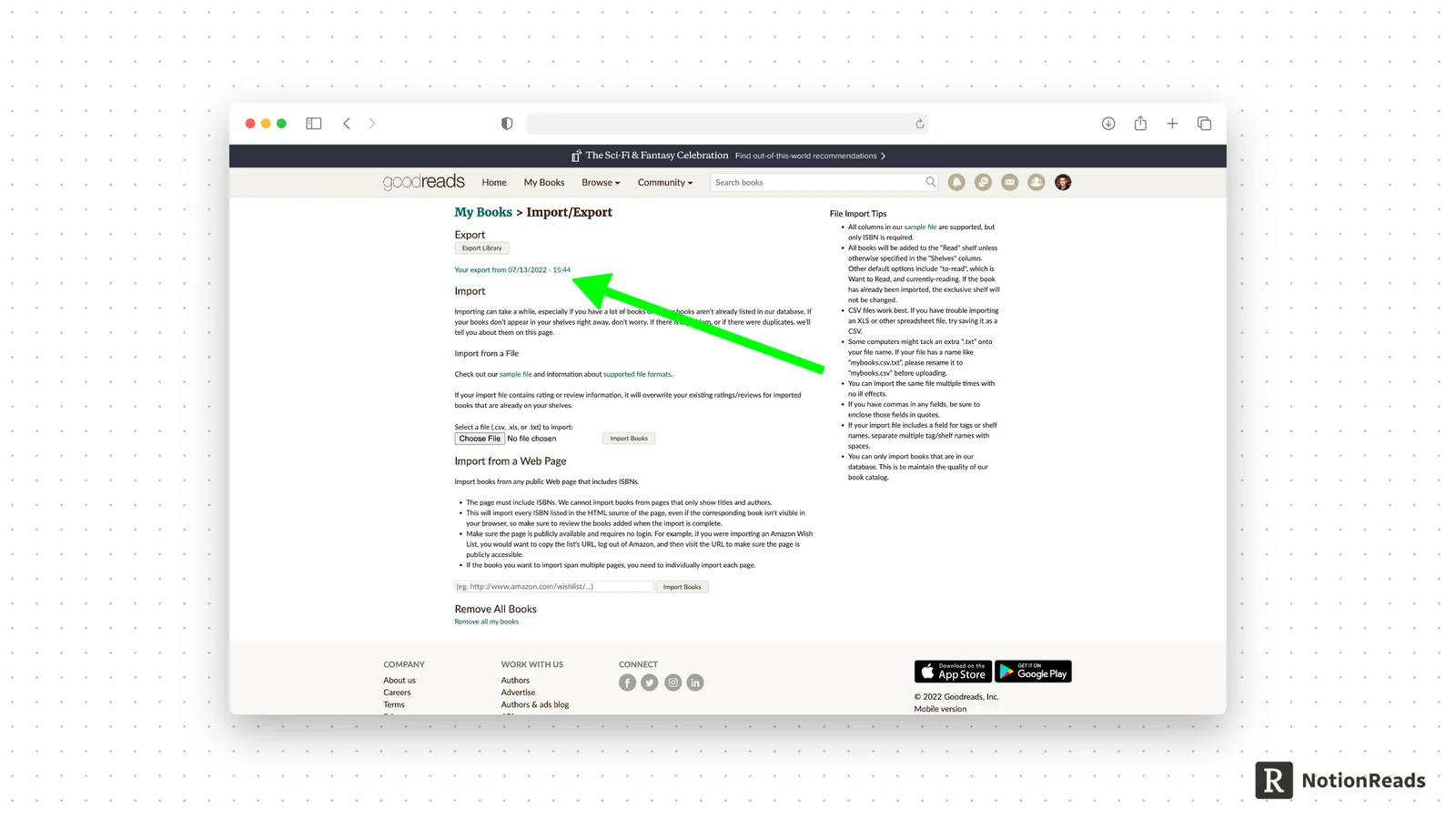
Sign in, then open the Goodreads import/export page.
Click Export Library and wait. A big library can take a while. When the page says your export is ready, download the CSV.
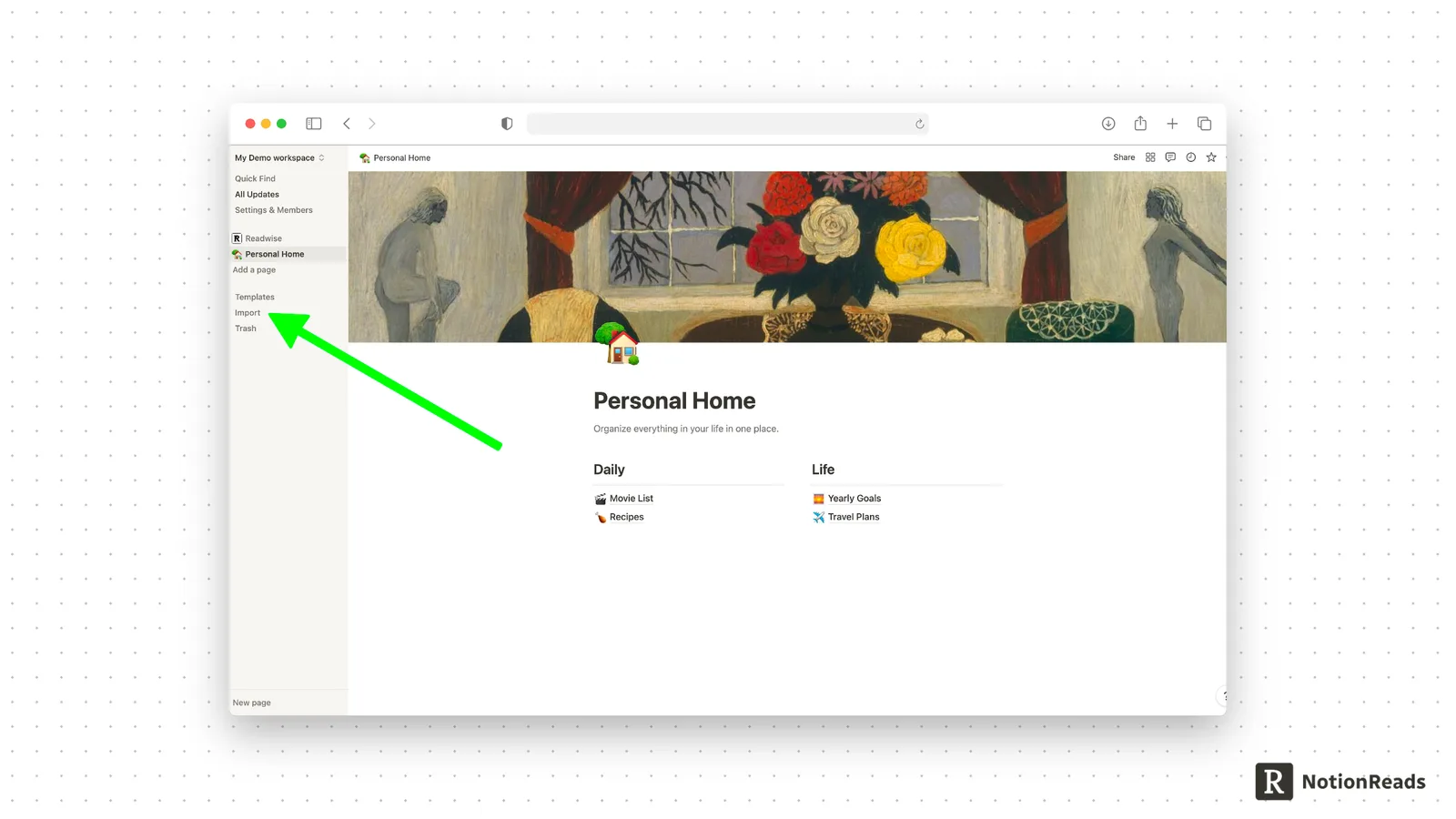
Import the CSV into Notion
Notion has moved this control since I first wrote these steps. The current help doc says to open Settings → Import → CSV, or to type /csv on a page. Pick the file you just downloaded. Notion adds the rows from the file and leaves rows you already have as they are. The walkthrough is Import data into Notion.
You get a database. Goodreads sends a lot of columns, so I delete the ones I never look at, keep the shelves and ratings, and add whatever properties I actually use. It is a solid backup. It is rarely a gallery full of covers. Exports are uneven, and a missing ISBN is how a book lands in Notion without a cover.
That is a fine stopping point if a table is all you wanted. I wanted the covers too, which is why the next approach exists.
Approach B: import with covers in NotionReads
I built NotionReads as the book tracker I wanted inside Notion: search, shelves, notes, and a Goodreads import that fills in the gaps the CSV leaves behind. It is a template you duplicate into your own workspace. On the pricing section it is a $60 one-time purchase (plus tax if it applies), with no running costs. It works with Notion’s free Personal Plan.
The free trial on that same page includes the template, adding up to 10 books, and a test of the Goodreads import. Lifetime access includes unlimited Goodreads import. Try the test before you pay. When the trial has answered the question, the license is the Buy Now button on the homepage.
Set up the template
Start the free trial or buy the license, then follow the Set-Up Instructions to duplicate the template and connect your account. The import page also links the Goodreads import instructions.
Export the same CSV
This is the same download as Approach A. On the Goodreads import/export page, click Export Library, wait for the file, and save the CSV.
Upload it on the Goodreads import page
Open the Goodreads import page after you sign in. The upload box is on that page once you are in your account.
Drag the CSV into the box, or click browse and pick the file. You can select or deselect books before you start. If Goodreads left an ISBN off a row, that book is flagged on the page and you can type an ISBN in before it imports. Then click the green Import button.
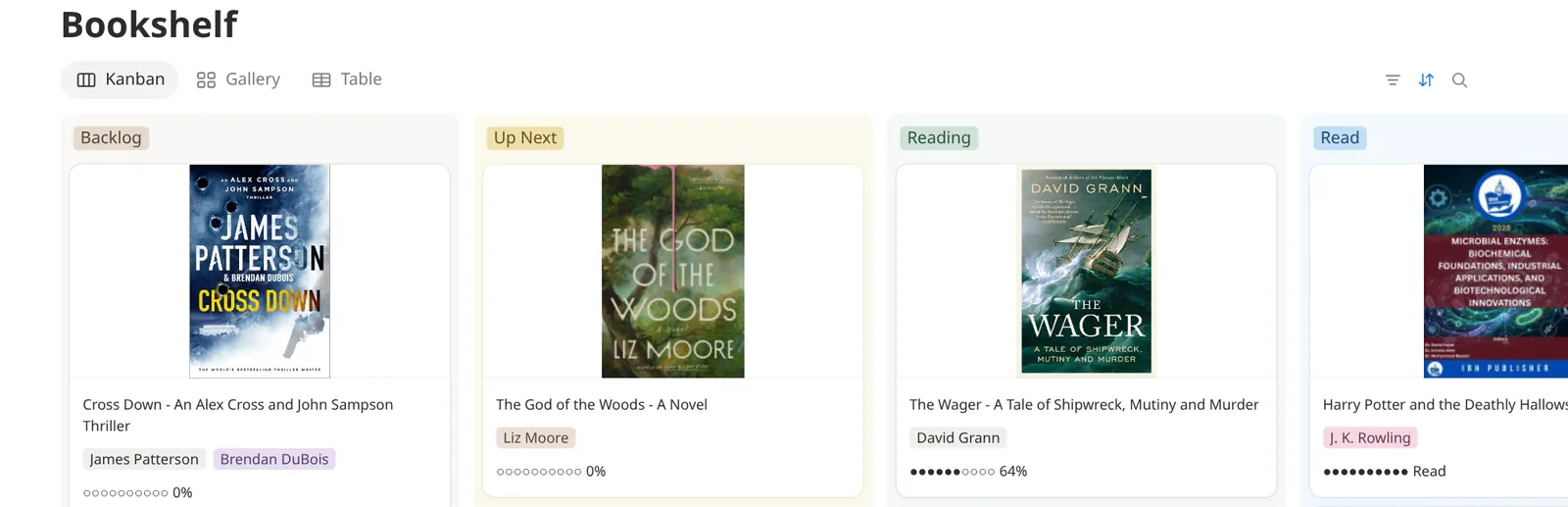
The books show up on a Notion shelf like the public demo:
Read the summary
After you start the import, a status page for that signed-in session tracks it. When it finishes, the summary says what came in cleanly. If a book arrives with incomplete data, the page lists the titles that came in without an image so you can add the cover yourself.
Once the shelves are in Notion
A library in Notion is more useful when the rest of your reading life can sit next to it.
- Covers and book details for anything you add later: a Notion book tracker that auto-fills covers and metadata
- Kindle highlights you actually want to find again: how to save Kindle highlights to Notion
- Library loans and holds beside the same shelf: a Libby and OverDrive tracker in Notion
If you want the shelf I use
Open NotionReads and look around. When you are ready to move the CSV, use the Goodreads import. The trial is there if you want to test it first, and the one-time license is on the pricing section.
Questions are welcome. Email me.