A Goodreads alternative, for me, is a shelf that lives in Notion, next to the notes I already write. Goodreads can stay the social catalog. This page is the practical move: why the library leaves, how that compares with StoryGraph and a plain Notion template, and what the Goodreads CSV import on this site actually does.
Try it free. A trial adds up to 10 books. Goodreads and StoryGraph share 3 library imports.
Why readers look for a Goodreads alternative
I am keeping this to reasons I can point at, with no invented counts.
Goodreads announced on March 28, 2013 that it was joining Amazon. Amazon's quarterly release that April listed the acquisition. If you want the reading log outside that catalog, the export is the way out. The account stays where it is. Exporting does not delete it.
Goodreads is built for shelves, ratings, and reviews that other readers can see. If the list needs to sit on a Notion page with the notes, the tasks, and the journal, that is a different place. I did not rebuild the social site.
The library itself can move. Goodreads publishes the export at the Goodreads import/export page. You do not retype the shelf.
NotionReads, StoryGraph, and a plain template
These are three different jobs. For StoryGraph, I am only stating what its own homepage says.
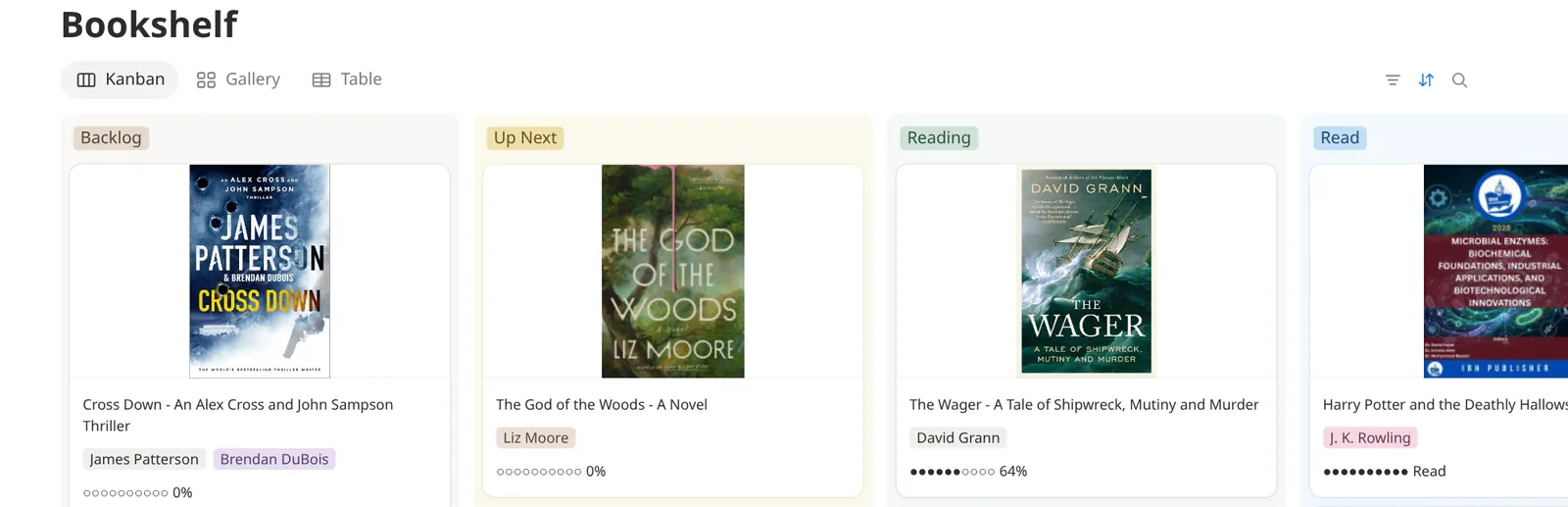
NotionReads is a Notion template with an embed you duplicate into your own workspace. The homepage says it works with Notion's free Personal Plan. Setup creates a page called NotionReads Book Tracker and a database called Bookshelf. Bookshelf has Title, Subtitle, Author, Genre, Reading Status, Page Count, Reading Progress (Page), ISBN_10, ISBN_13, Added, Rating, and Read Dates, plus a Progress formula. Reading Status is Backlog, Up Next, Reading, Read, or Did not finish. Rating is a whole star, from one to five. The tracker adds a Kanban grouped by Reading Status, a Gallery, a table, a Currently Reading view, and Favorites. Currently Reading keeps Reading Status equal to Reading. Favorites keeps a Rating of four stars or five stars.
A search writes the cover, the title, the subtitle, the author, the genre, the page count, and ISBN_10 and ISBN_13, when the source has them. Added is that day. Reading Status is the status you pick, and Backlog is the default. Reading Progress (Page) starts at 0. When the status is Read and a page count is there, Reading Progress (Page) is set to that page count. A comma in an author or genre name is replaced with a space. The description in the search result stays on that screen.
The paid plan is in the pricing section. You pay once. The 10-book cap applies to the trial.
StoryGraph, on its homepage, says it will help you track your reading and choose your next book based on your mood and your favorite topics and themes. That page lists charts and graphs, mood filters, custom tags and lists, reading challenges, content warnings, half and quarter stars, a Did not finish mark, an Owned flag, a reading journal, an Up Next queue of the next five books, book clubs, and comments on a shared read that stay locked until the other person reaches that point.
The StoryGraph import can bring a StoryGraph CSV onto the Notion shelf. It writes the title, the authors from the Authors column, the ISBN when ISBN/UID is a valid ISBN, the read status, the date added, the read dates, and a whole-star rating. A review is saved only when a shelf field is mapped to description. A cover, a page count, and up to eight genres are filled when the ISBN matches a search result. Moods, pace, content warnings, tags, format, read count, owned, and contributors stay in the file. Did not finish stays Did not finish on a new Bookshelf. Ratings round to the nearest whole star, and a rating under half a star can be left off. The walkthrough is how to move your StoryGraph library to Notion.
NotionReads does not have those mood filters, content warnings, or half-star ratings. If the charts and the mood filters are the part you open, StoryGraph is the app for that. If the book has to live on the Notion page, use the import.
A plain Notion template is the free database you build yourself. The free Notion reading list template is Title, Status, Author, Format, Started, Finished, Rating, and Notes. You type each book. The cover is a paste. There is no Goodreads importer and no cover lookup on that database.
The other free path is Notion's own CSV import. The steps, and what that file keeps, are in how to import your Goodreads library to Notion. That path does not fetch covers.
Export the Goodreads CSV
- Sign in on Goodreads. Open My Books, then Import and export. That page is the Goodreads import/export page.
- Click Export Library and wait. A large library can take a while. When the page says the export is ready, download the CSV.
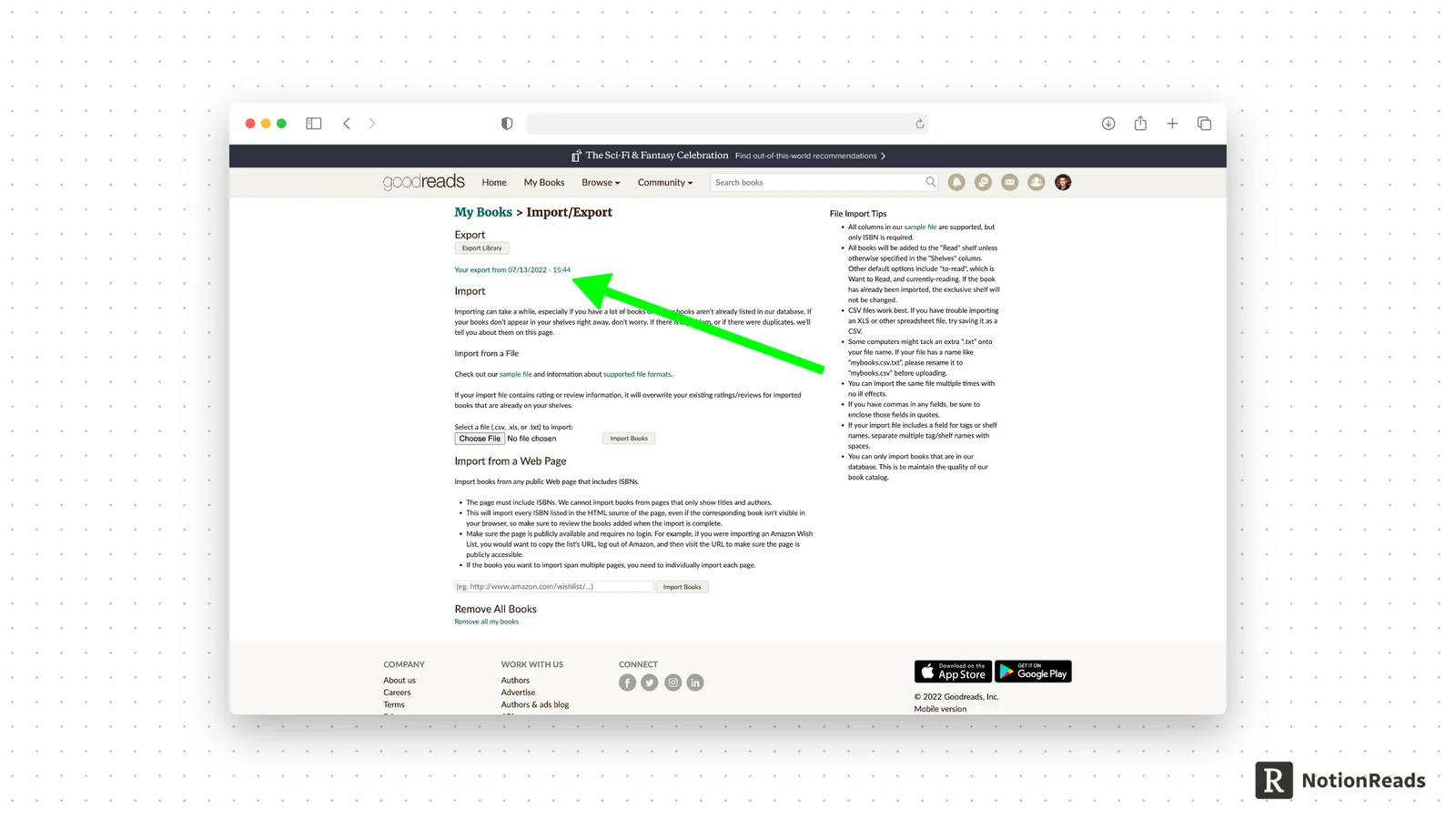
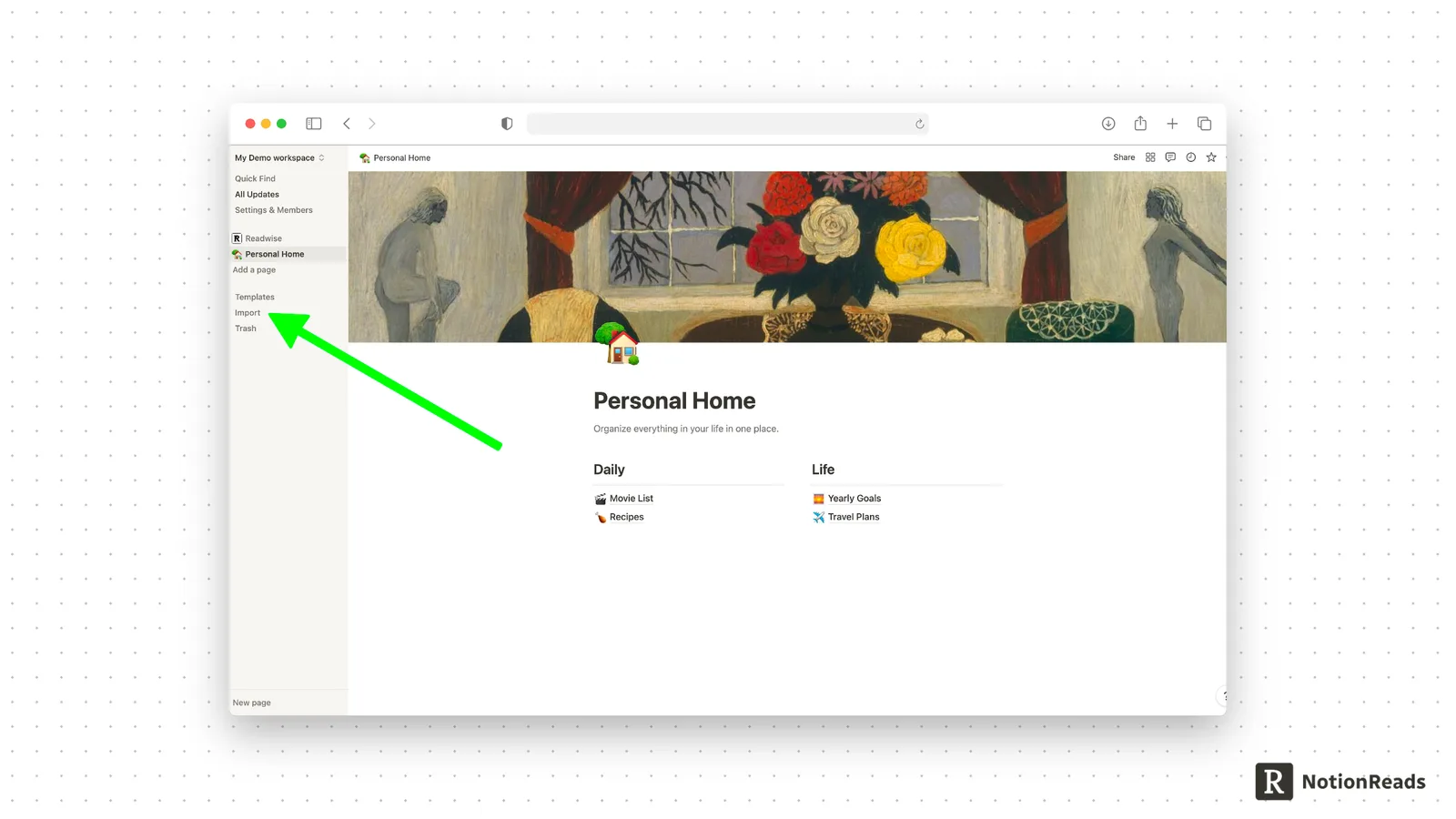
Use that Export Library file. The Goodreads page on NotionReads reads a Goodreads export. A StoryGraph CSV is a different file.
Import with the Goodreads importer
After you start the trial, follow the Set-Up Instructions to duplicate the template and connect Notion. Then open the Goodreads import. The public notes for that page are on Import from Goodreads.
Drag the CSV into the box, or click browse. The page keeps rows that have a Book Id. It strips the spreadsheet formula wrapper from ISBN and ISBN13, the equals sign and the quotes Excel puts around the number. A row with an ISBN or ISBN13 is preselected. A row with no ISBN or ISBN13 stays unchecked, and the checkbox stays off until an ISBN or ISBN13 is in that row. The table lists rows that have a title. It shows the title, the author, your rating, the ISBN, the ISBN13, the exclusive shelf, and the date read.
The button counts the rows it kept. On a trial the label stops at 10, and the page says a trial can upload 10 books. Click Import.
Unchecking a row, or typing an ISBN into the table, changes that preview. Import uploads the CSV you dropped. It does not upload the edited table. If a row has no ISBN, I put the ISBN in the CSV before I upload it.
A status page tracks that import. You can close the page and open the same link later. When it finishes, it lists books that came in without a cover and books that could not be imported. It names the title and the author on those rows.
What lands on the shelf
The page keeps rows that have a Book Id. It strips the spreadsheet formula wrapper from ISBN and ISBN13. A row with an ISBN or ISBN13 is preselected. The preview shows the title, the author, your rating, the ISBN, the ISBN13, the exclusive shelf, and the date read. Import uploads the CSV you dropped.
When the import finishes, the status page lists books that came in without a cover and books that could not be imported.
If a year count depends on Read Dates or Rating, check those on the shelf after the import. The counts are in the Notion reading stats dashboard.
When a cover is missing, search still fills one title. The cover and the author come back here:
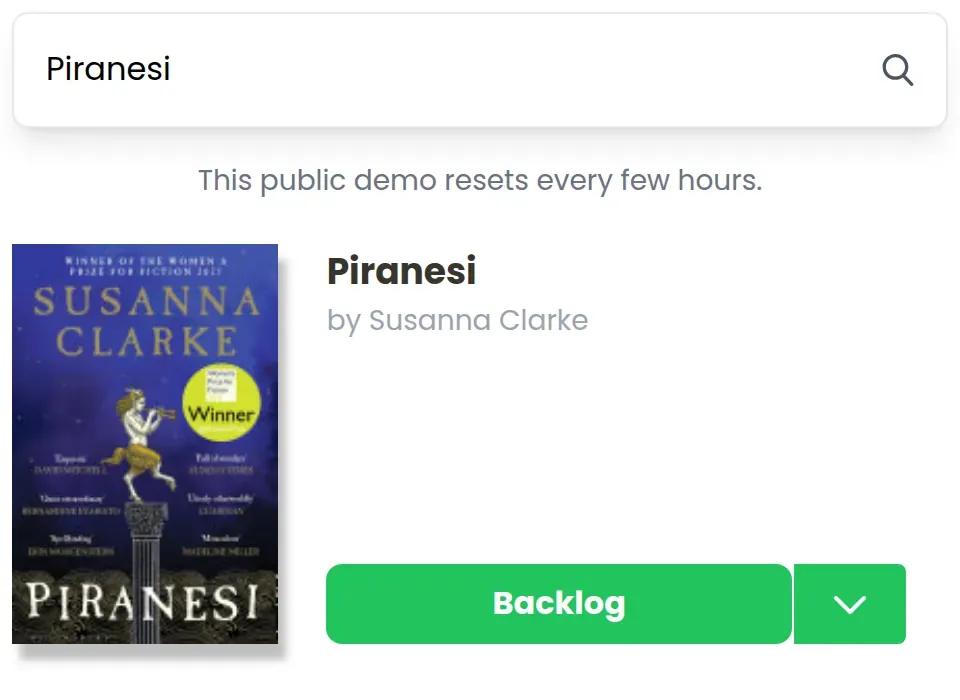
Once the books are on the shelf, it looks like this:
FAQ
What is a Goodreads alternative that lives in Notion?
NotionReads is a template you duplicate into your own Notion workspace. It creates a page called NotionReads Book Tracker and a database called Bookshelf. A search can fill the cover, the title, the author, the genre, the page count, and the ISBNs when the source has them. A trial adds up to 10 books. Goodreads and StoryGraph share 3 library imports.
Why do readers leave Goodreads?
Goodreads announced on March 28, 2013 that it was joining Amazon, and Amazon listed the acquisition in that April's quarterly release. Readers who want the log outside that catalog, or next to notes they already keep in Notion, can export the library and move the shelves without retyping them. Exporting does not delete the Goodreads account.
How do I export my Goodreads library?
Sign in on Goodreads, open My Books, then Import and export. That page is https://www.goodreads.com/review/import. Click Export Library, wait for the file, and download the CSV. A large library can take a while.
What does the Goodreads import write to the shelf?
The page keeps rows with a Book Id and strips the spreadsheet formula wrapper from ISBN and ISBN13. A row with an ISBN or ISBN13 is preselected. The preview shows the title, the author, your rating, the ISBN, the ISBN13, the exclusive shelf, and the date read. Import uploads the CSV you dropped. The status page lists books that came in without a cover and books that could not be imported.
How does NotionReads compare with StoryGraph?
StoryGraph's site is a reading app with charts, mood filters, content warnings, and half stars. Its CSV import into NotionReads writes the title, the authors, the ISBN, the status, the date added, the read dates, and a whole-star rating. Moods, pace, tags, and content warnings stay in that file. NotionReads is the shelf inside Notion, and it does not include those StoryGraph filters.
Can I track books in a plain Notion template?
Yes. The free reading list on this blog is a database you build and type into: title, status, author, format, started, finished, rating, and notes. Covers are a paste. Notion's own CSV import is the other free path, and it does not fetch covers.
What I would do next
If the social shelves are what you open, stay on Goodreads. If the charts, the mood filters, and the half stars are the part you use, stay on StoryGraph and import only when a book needs to sit in Notion.
If the book has to live on the Notion page, export the CSV. The free stop is the CSV import in the guide above. If you want the covers on Bookshelf, start the free trial. I would test one export before paying for the license.
Questions are welcome. Email me.